Newsletter Subscribe
Enter your email address below and subscribe to our newsletter

Enter your email address below and subscribe to our newsletter
Learn, Tech & AI
 ByUpkar
If you’ve been searching “is Gemini available on Mac,” you’re not alone.
For almost a year, ChatGPT had a slick Mac desktop app while Gemini users were stuck with a browser tab. Users kept typing gemini.google.com every day until Google finally released the native app.
Here’s the honest situation: as of mid-2026, Google has silently launched a native Gemini app for macOS. But even if you haven’t installed it yet — or if it hasn’t rolled out to your region — there are three solid methods to get Gemini running on your Mac in under two minutes.
Whether you’re on a MacBook Air M1, M2, or the latest Pro, the app brings Google’s AI right into your workflow with a simple keyboard shortcut. It feels native, responds faster than the web version, and even lets you share whatever’s on your screen for context-aware answers.
So, how to use the Google Gemini app on Mac now? You have three good options:
| Setup Method | How to Access | Best For | Compatibility |
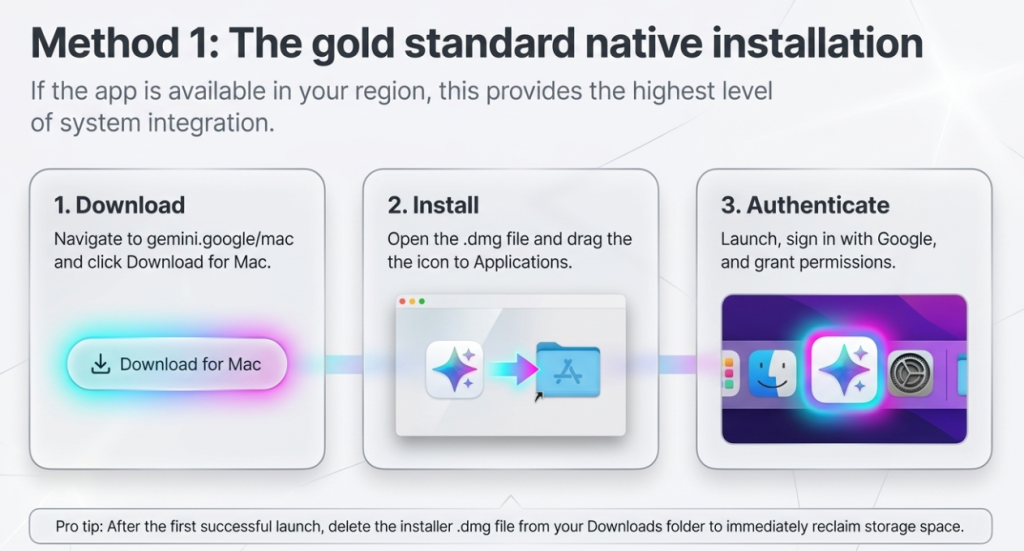
| 1. Official Native App | Download from the Mac App Store or gemini.google/mac | Full system integration, screen context sharing, and offline use. | MacBook Air & Pro (M1, M2, M3) running macOS 13+ |
| 2. Browser Web App (PWA) | Use Chrome’s “Install page as app” or Safari’s “Add to Dock” feature. | A native app feel and dedicated dock icon without needing an update. | All MacBooks (M-Series and Intel) |
| 3. Custom Shortcut | Press Option + Space (native app) or map a system shortcut to the web app. | Instant, overlay access to AI without switching away from your active window. | All MacBooks |
Yes — finally. Google officially released a native Gemini app for macOS, announced via the Google Blog. It’s available on the Mac App Store and supports Apple Silicon (M1/M2/M3) as well as Intel Macs running macOS 13 Ventura or later.
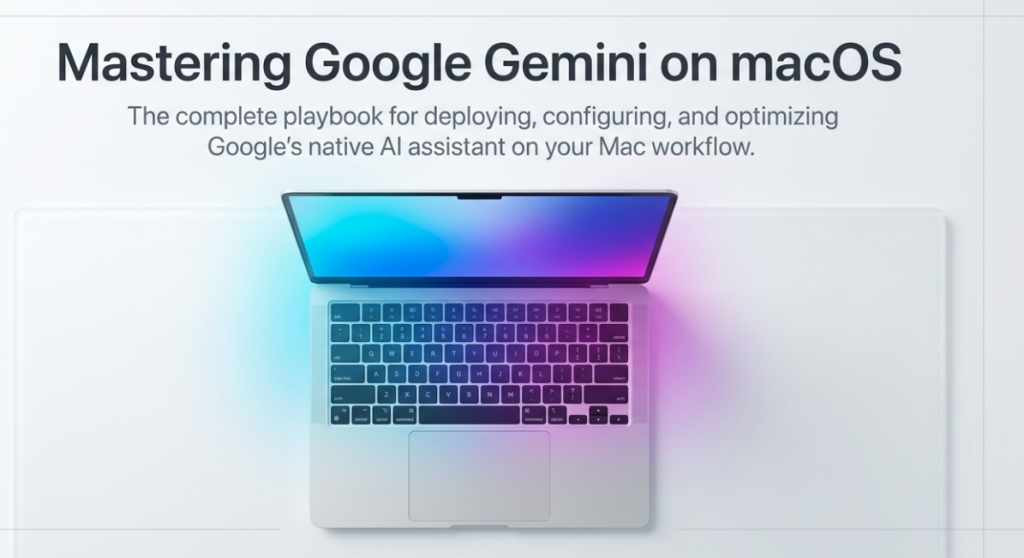
That said, the rollout has been gradual, and many users report the App Store listing isn’t visible in all regions yet. If you can’t find it — or prefer not to install another app — Methods 2 and 3 below work just as well.
Intel-based Macs and older macOS versions are not supported. Most current MacBook Air and Pro users are good to go.
To use Google Gemini on Mac, download the official app from the Mac App Store (requires macOS 13+), or open Google Chrome, go to gemini.google.com, and install it as a Progressive Web App. For instant access with no installation, open any browser, visit gemini.google.com, and sign in with your Google account.
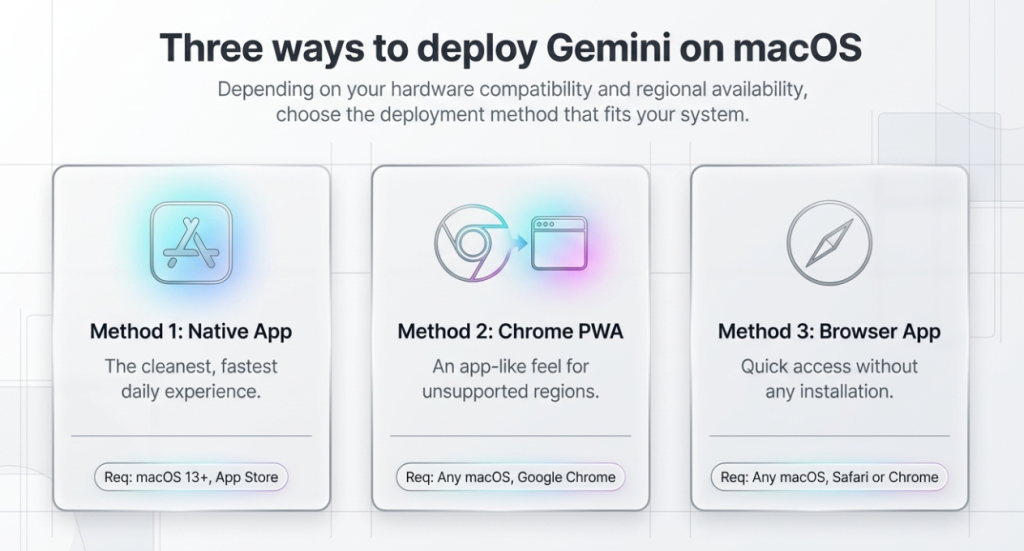
The native app gives you a standalone window, keyboard shortcut access, and better system integration than the browser version. Think of it like how ChatGPT has its own Mac app — Gemini now has that too.
Pro tip: After the first launch, you can remove the .dmg file to free up space.
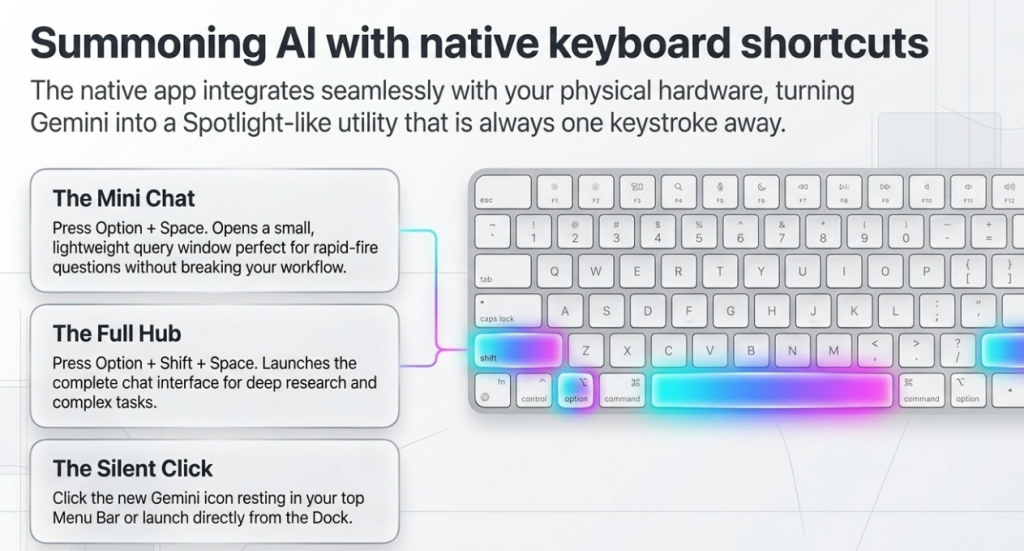
This is where the app shines.
You can change both shortcuts in the app’s Settings. Many Mac users keep Option + Space as their go-to trigger—it feels as natural as Spotlight but for AI. You can also click the Gemini icon in the menu bar or launch it from the Dock.
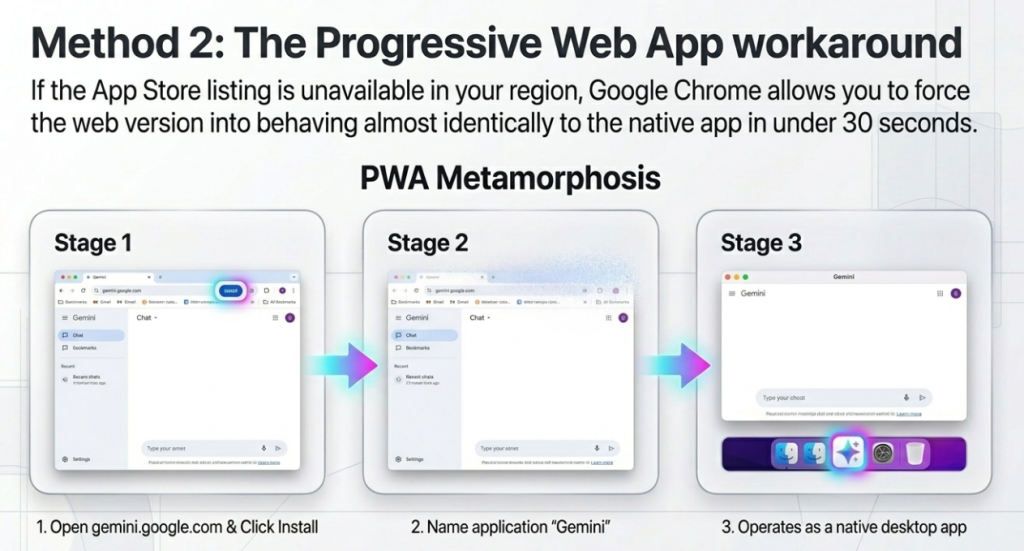
If the App Store route isn’t working for you, this is the next best thing. Chrome lets you install Gemini as a Progressive Web App (PWA) — it behaves almost identically to a native app, sits in your Dock, and opens in its own window.
gemini.google.comgemini.google.comThis creates a true Gemini desktop app Mac workaround — no tab clutter, it gets its own icon, and it works offline for the interface.
You can assign it a keyboard shortcut via System Settings → Keyboard → Shortcuts if you want even faster access. This method works on all Macs running Chrome, regardless of macOS version.
No installation needed at all. Gemini works fully in Safari, Chrome, Firefox, and Edge on macOS.
Steps:
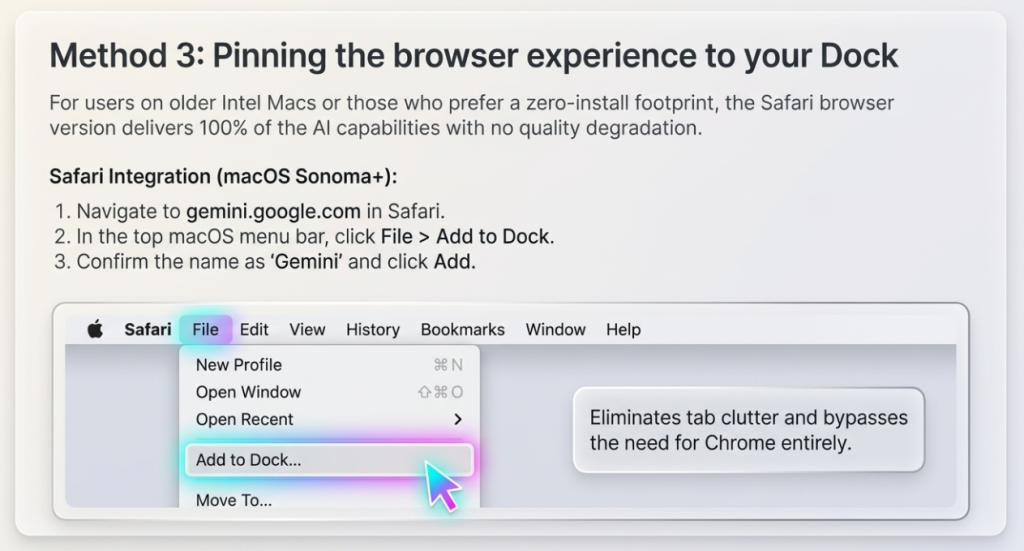
For Safari users specifically: bookmark the page and add it to your Favorites Bar for one-click access. You can also use Safari’s “Add to Dock” feature (File → Add to Dock) to create a near-native experience without Chrome.
The browser version supports everything Gemini offers — text generation, image analysis, code help, Google Search grounding, and Gemini Advanced features — with no quality difference from a standalone app.
| Method | Best For | Requires |
|---|---|---|
| Native Mac App | Cleanest experience, daily users | macOS 13+, App Store access |
| Chrome PWA | App-like feel, any macOS | Google Chrome |
| Browser (Safari/Chrome) | Quick access, no install | Any browser |
Honestly? If the native app is available in your region, install it — it’s a noticeably nicer experience than a browser tab. If not, the Chrome PWA is almost indistinguishable from a real app and takes 30 seconds to set up.
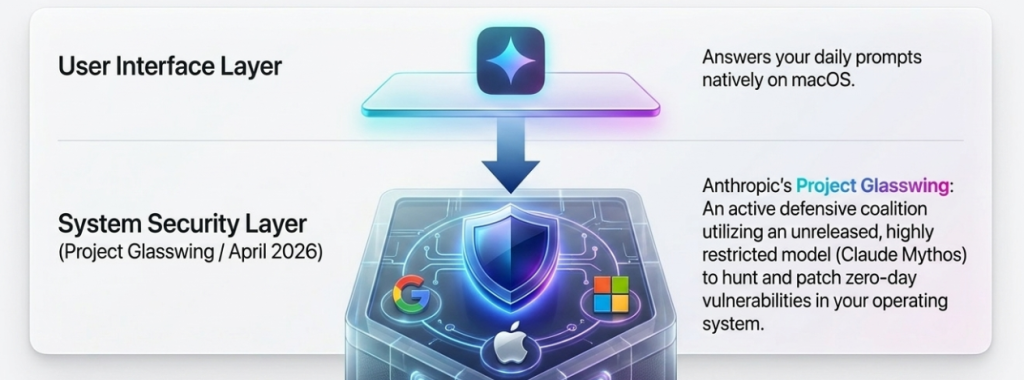
While Gemini delivers excellent native performance on macOS, it’s worth noting that Google is also actively involved in other major AI initiatives.
In April 2026, Anthropic launched Project Glasswing — a collaborative effort with Google, Apple, Microsoft, and several other tech giants — that uses advanced AI models to scan and secure critical open-source software.
If you’re interested in how these behind-the-scenes AI developments could shape the future of tools like Gemini on your Mac, read our tech updates blog.
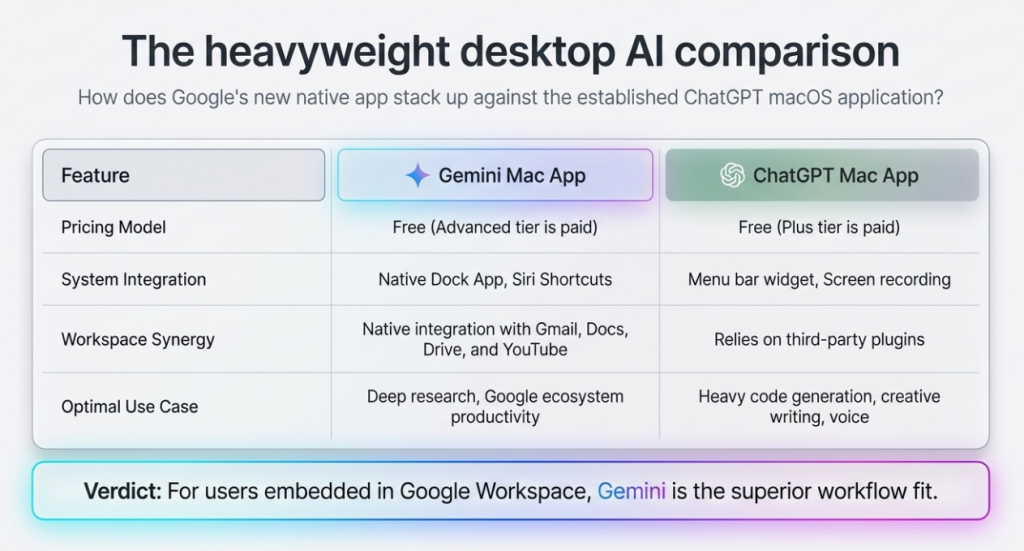
It’s natural to compare the Gemini experience to OpenAI’s ChatGPT, which does have an official, native Mac app.
| Feature | Gemini Mac App | ChatGPT Mac App |
|---|---|---|
| Price | Free (Gemini Advanced is paid) | Free (Plus is paid) |
| Google Integration | Native: Gmail, Docs, Drive, YouTube | Requires plugins |
| Mac Features | Dock app, Siri Shortcuts | Menu bar, screen recording |
| Best For | Research, Google Workspace, productivity | Coding, writing, voice mode |
For most Mac users who already live in Google’s ecosystem — Google Docs, Gmail, Drive — Gemini is the more natural fit. If you’re doing heavy coding or creative work, ChatGPT still has an edge.
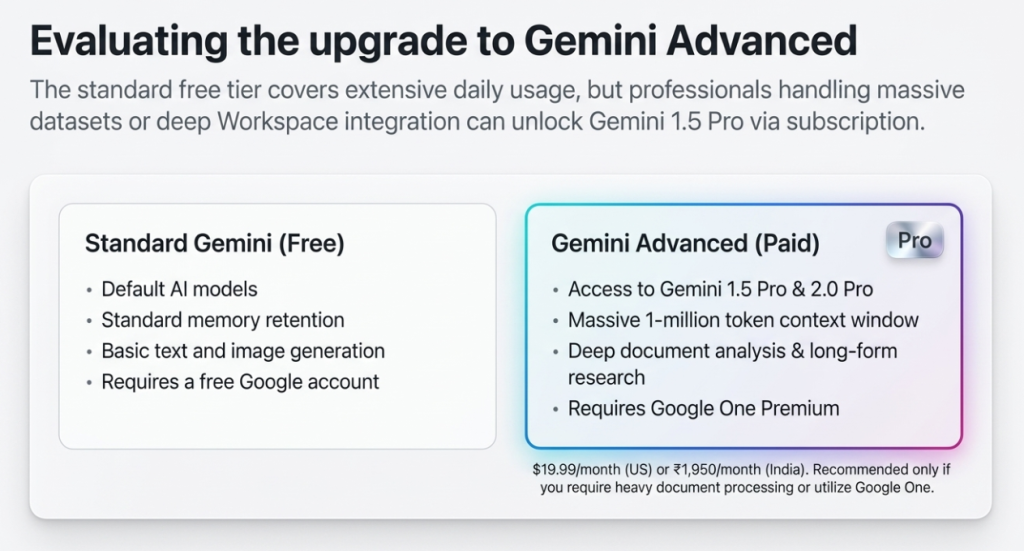
Gemini Advanced is the paid tier, included with a Google One Premium subscription (starts at ₹1,950/month in India or $19.99/month in the US).
You get access to Gemini 1.5 Pro (and soon 2.0 Pro), longer context windows (up to 1 million tokens), integration with Google Workspace apps, and priority access to new features.
For casual use, the free tier covers a lot. For professionals doing document analysis, long-form research, or heavy Workspace integration, Advanced is worth evaluating — especially if you already use Google One for storage.
“Gemini App Store page not found” The app may not be available in your country’s App Store yet. Use Method 2 (Chrome PWA) as a workaround.
Gemini not loading in Safari Make sure JavaScript is enabled (Safari → Settings → Websites → JavaScript → Allow). Also try clearing your browser cache.
Slow performance on older Macs Gemini is cloud-based, so performance depends more on your internet connection than your Mac’s chip. A stable Wi-Fi connection matters more than M1 vs Intel here.
Gemini not remembering previous chats This is expected unless you’re signed in with a Google account. Sign in and chat history syncs automatically across devices.
The native Gemini app finally makes Google’s AI feel at home on the Mac. Installation takes under two minutes, the shortcuts are intuitive, and screen sharing turns it into a true desktop companion. Whether you want the full native experience or a quick web-app fallback, you now have reliable ways to bring powerful AI into your daily Mac workflow.
Download it today from gemini.google/mac and see how much smoother your workflow becomes.
Yes. Google released a native Gemini app for macOS in 2026, available on the Mac App Store. It requires macOS 13 Ventura or later. Alternatively, Gemini works fully in any browser at gemini.google.com.
Download the Gemini app from the Mac App Store (search “Google Gemini”), or open Chrome, go to gemini.google.com, and install it as a Progressive Web App. Both methods work natively on Apple Silicon.
Yes. Open Safari or Chrome and go to gemini.google.com. Sign in with a Google account and you have full access — no download required.
The standard Gemini tier is free with a Google account. Gemini Advanced requires a Google One Premium subscription for access to more powerful models and Workspace integrations.
Bard was Google’s earlier AI assistant, rebranded as Gemini in early 2024. If you used Bard before, Gemini is the same service with a new name, newer models, and more features. All Bard bookmarks and links redirect to Gemini automatically.
Partially. The app can display cached responses offline, but generating new responses requires an internet connection since Gemini’s AI runs on Google’s servers.
Whether you install the native app, set up the Chrome PWA, or just bookmark the browser version — you’re a few minutes away from having one of the most capable AI assistants running on your MacBook.
If you found this guide helpful, TechGuruShiksha covers more practical AI tools and Mac productivity guides. Explore the blog for setup guides on ChatGPT for Mac, Claude on macOS, and comparing the best AI tools for Indian Mac users in 2026.
While setting up Gemini provides you with an incredible daily assistant, the broader AI landscape is already moving beyond simple chat interfaces and into deep, system-level cybersecurity.
For example, Apple and Google recently joined a massive defensive coalition led by Anthropic. Using a highly restricted, unreleased AI model called Claude Mythos, these tech giants are actively hunting down and patching zero-day vulnerabilities within major operating systems before threat actors can exploit them. To understand how these next-generation AI models are being used to secure the software you use every day, check out our complete breakdown of what Anthropic’s Project Glasswing is and why it matters.